10 Collaborative Writing Tools Worth Using For Teams
The best collaborative writing tools don't just help you write. They keep your whole team aligned from the first draft to the final publish.
Your team already has a writing tool. Chances are, it's Google Docs. If you’re a large enterprise, it’s probably Microsoft Word. Or, if you’re a young startup, maybe it’s Notion.
All of these tools work perfectly fine for writing. Problems arise, though, when your team isn’t all using the same tool. Feedback lands in Slack, revisions get emailed back and forth, or coworkers schedule time on your calendar for what could have been a simple comment in a document.
Grammarly research put a number on this type of dysfunction: poor collaboration costs U.S. businesses $1.2 trillion annually.
Your writing tool isn't broken. The workflow around it is. This guide will solve just that.
You'll find a vetted, tightly curated list of the best collaborative writing tools, a side-by-side comparison, and a practical walkthrough of how to connect them into a workflow that stays together from writing to editing to publishing.
First, a quick distinction …
Content Writing Tools Vs. Knowledge Management Tools
The tools in this list fall into two different camps:
Content writing tools (Google Docs, Microsoft 365, Zoho Writer, Ellipsus, HackMD) are built for writing that leaves the document. The workflow is linear: draft, review, approve, publish. What matters is the writing experience, and a clean handoff to wherever the piece gets published.
Knowledge management tools (Confluence, Nuclino, ClickUp Docs) are built for writing that stays inside the organization and evolves: internal wikis, runbooks, and onboarding guides. Discovery matters as much as creation.
Notion and Dropbox Paper sit in both camps depending on how a team uses them, though teams that try to use Notion as both a content tool and a knowledge base without a clear structure tend to end up with a workspace that serves neither job well.
✅ Simply put: if your writing is for an external audience, you want a content writing tool. If it lives in your organization and gets updated repeatedly, you want a knowledge management tool. Many teams need both, and the tools below are labeled accordingly.
What To Look For In A Collaborative Writing Tool
Before you evaluate any writing tool, get clear on what your team actually needs …
Real-time vs. async collaboration
Real-time co-editing is great for fast, interactive iteration. But with 32.6 million Americans now working remotely and 83% of global employees preferring some form of hybrid arrangement, distributed teams need strong async support too.
Threaded comments, suggestion modes, and robust version history are just as important as live cursors. Look for tools that handle both, not just one.
Version history and change attribution
You need to know who changed what and when. Named versions, full change logs, and the ability to restore any prior state are non-negotiable for content teams. Without this, a single bad edit can derail your progress, forcing you to search for an earlier version or start over.
Commenting and suggestion workflows
Inline comments, @mentions, and a dedicated suggesting mode are the mechanics of a real editorial process. Without them, feedback defaults back to Slack and email, which is exactly what you want to eliminate (ideally, all collaboration should happen within the document itself).
AI assistance, and how well it's integrated
AI features are now expected in collaborative writing tools. 97% of content marketers plan to use AI in 2026, up from 90% in 2025 and 64.7% in 2023.
What separates good from a gimmick is whether AI assistance is woven into the writing experience or just tacked on as an afterthought.
⚠️ It's also worth noting: not every team wants AI in their writing tool, and that's a completely valid preference.
Integrations with tools your team already uses
The best collaborative writing tool is the one that fits into your existing stack:
- Does it connect to your project management tool? (e.g., Trello)
- Your CMS? (e.g., WordPress)
- Your communication platform? (e.g., Slack)
A tool that requires a context switch for every handoff creates friction.
The Best Collaborative Writing Tools
With the above framework in mind, here are the best collaborative writing tools available today.
Content Writing Tools
Google Docs
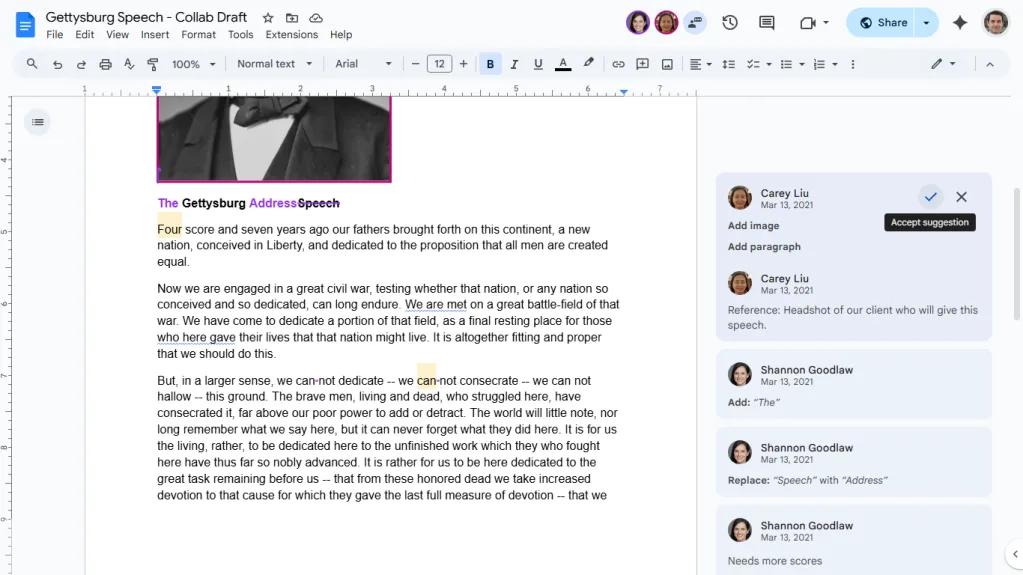
Google Docs is the closest thing the writing world has to a universal standard. It's a browser-based document editor with industry-leading real-time co-editing, version history, and deep integration across the Google ecosystem (Drive, Meet, Gmail, Calendar).
Recent Gemini AI updates added drafting assistance, tone matching, document summarization, and image generation. It's the tool most content teams already know and use.
Standout features: Live cursors with simultaneous multi-user editing; Suggesting mode for tracked edits; Gemini AI (drafting, rewriting, style matching, summarization); smart chips for linking files, people, and dates; works on any browser with strong offline support.
One honest limitation: Formatting and layout capabilities fall short of Microsoft Word. Converting to other formats often causes formatting issues, making it a poor choice for complex document design.
Pricing: Free for personal use. Google Workspace Business Standard (required for full Gemini AI) starts at $14/user/month.
Best for: Teams already in the Google ecosystem who want the lowest barrier to entry.
Microsoft 365 (i.e., Microsoft Word)
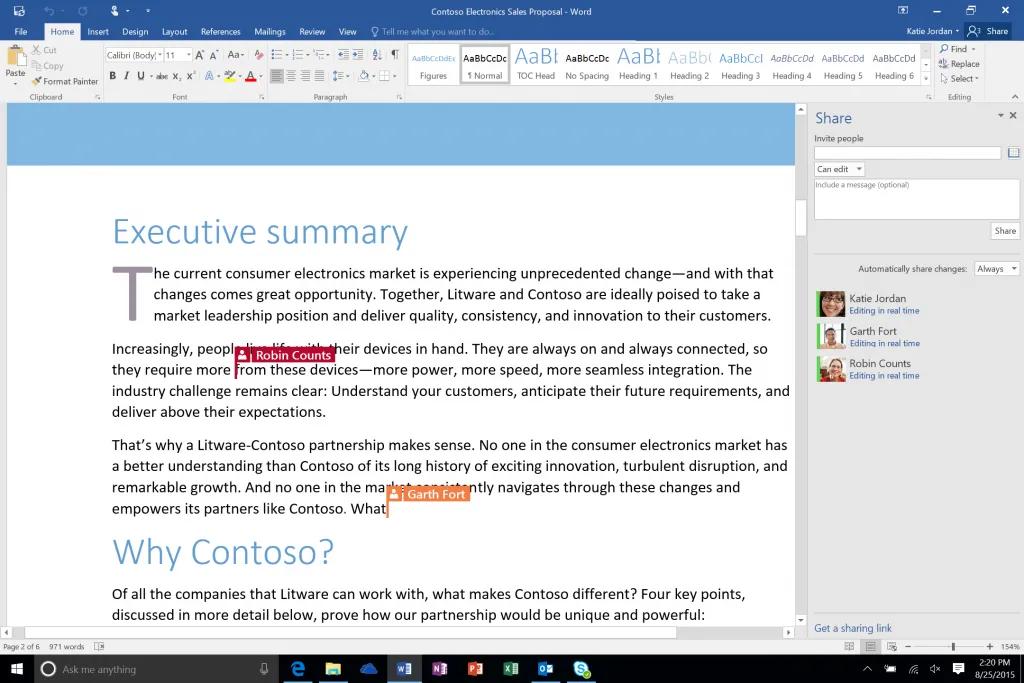
Microsoft Word is the industry standard word processor for a reason, and its web and desktop versions now offer full real-time co-authoring alongside enterprise-grade security (DLP, sensitivity labels, conditional access). The Teams integration also means co-authoring can happen directly within team channels.
Standout features: Full-featured desktop, web, and mobile apps (not just browser-based); deep Teams integration for in-channel co-authoring; Copilot Agent Mode for conversational document creation; industry-leading formatting, styles, templates, and table of contents tools; enterprise security and compliance.
One honest limitation: Copilot is only available on higher tiers (starting at $22/user/month). This makes the full AI experience significantly more expensive than competitors who bundle AI into their tool.
Pricing: Business Basic starts at $6/user/month (rising to $7 in July 2026). Plan with Copilot start at $22/user/month.
Best for: Enterprises that need desktop-grade formatting, deep security controls, and Teams integration.
Zoho Writer
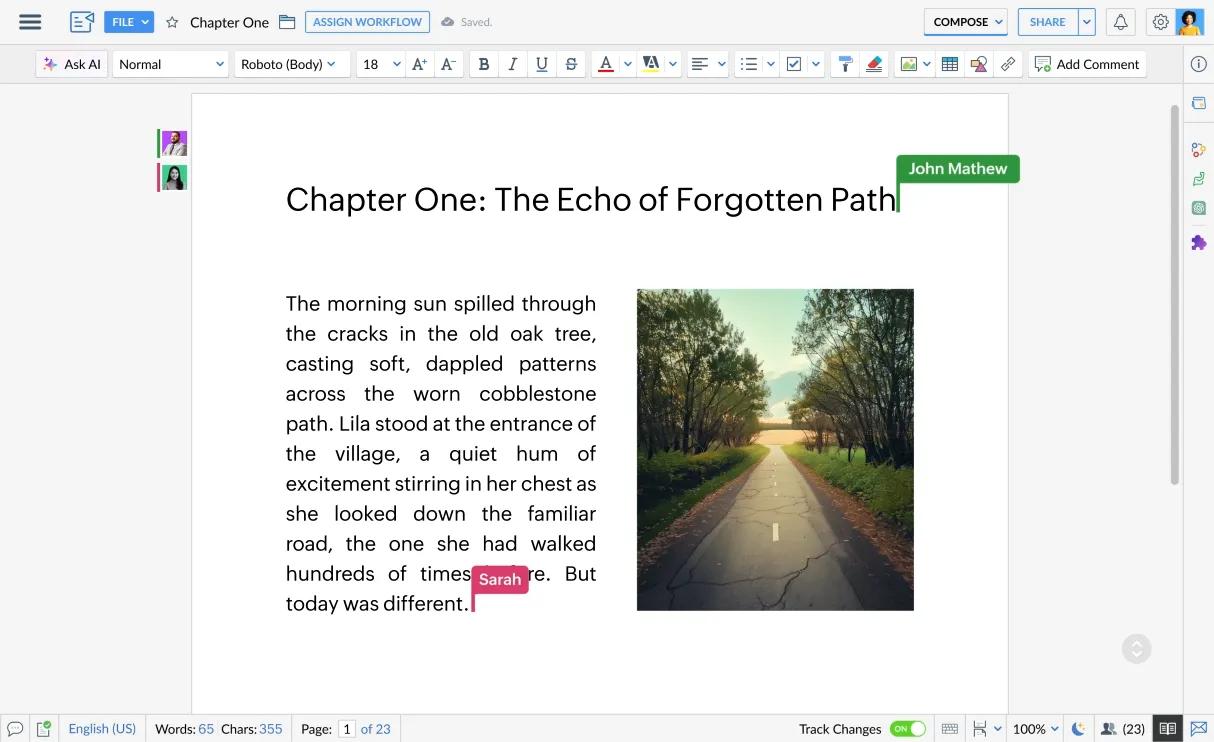
Zoho Writer is a fully-featured online word processor that is, remarkably, completely free. It offers real-time collaboration, track changes, multi-stage approval workflows, document automation (merge, fillable forms, e-signature collection), and Zia, a built-in AI assistant covering grammar, style, content generation, plagiarism detection, and translation.
Standout features: Free with no meaningful feature restrictions; Zia AI (grammar, style, generative content, plagiarism detection, language translation) at no extra cost; multi-stage document review and approval workflows; document automation with merge, forms, and e-signatures; desktop apps for Windows, Mac, and Linux.
One honest limitation: Less polish and name recognition than Google Docs or Word. Some users report occasional performance and stability issues, particularly with large documents. Teams not using other Zoho products may find the ecosystem integrations less useful.
Pricing: Free for individuals and businesses. Document automation credits are the only additional cost (200 free/month included).
Best for: Budget-conscious teams who want a full-featured word processor with AI included at no cost.
Ellipsus
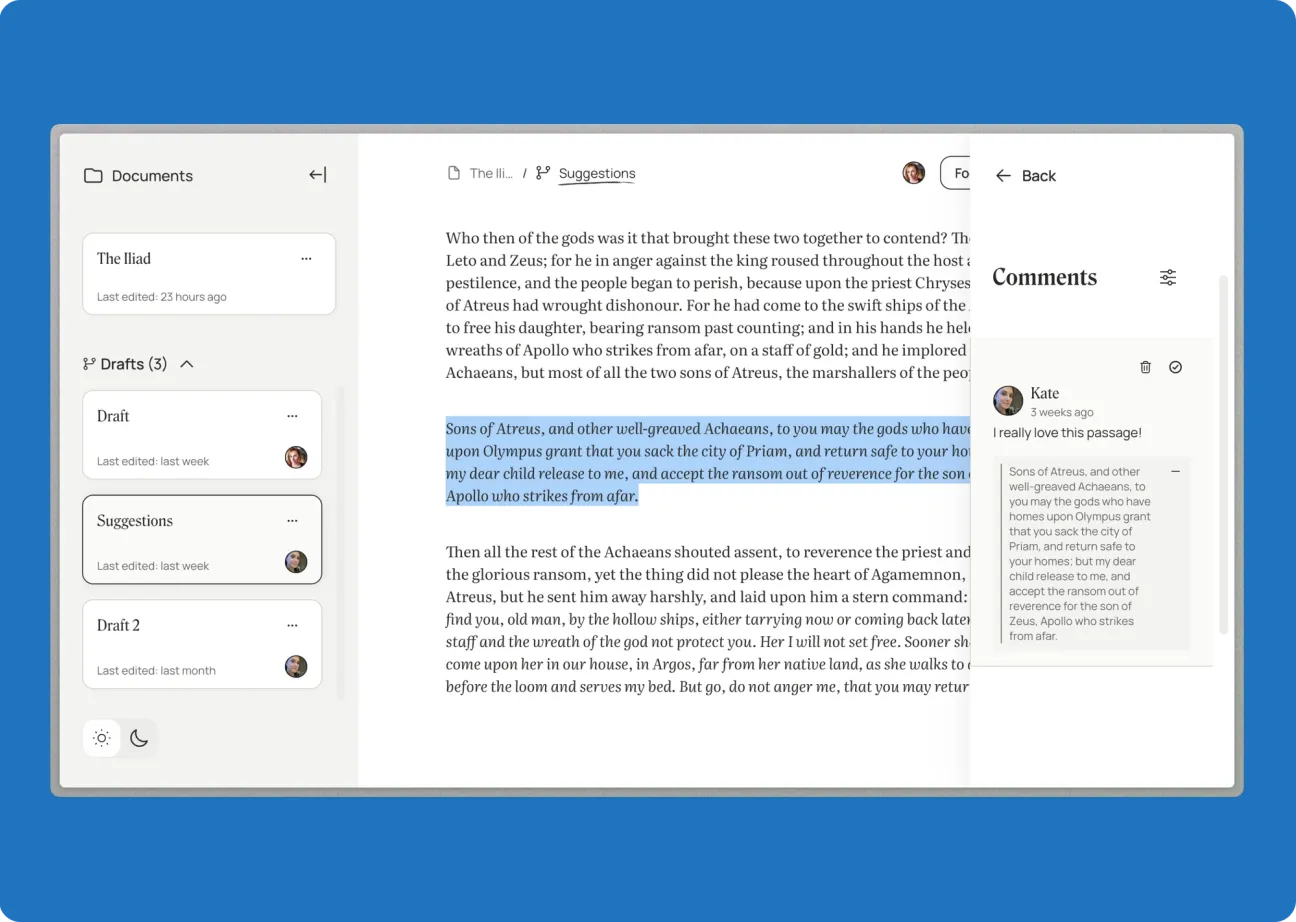
Ellipsus is a purpose-built collaborative writing tool for creative writers, co-authors, and beta readers. Its defining feature is a unique draft system: each collaborator works on their own independent draft linked to the master document. Drafts are compared side-by-side and selectively merged, with the document owner retaining full control over the final version.
The has taken a firm, principled stance on AI: no generative AI, ever, and no training on users' work.
Standout features: Unique multi-draft system for truly independent parallel collaboration; Focus Mode, Sprint Timer, and word count tracking built for writers; export to PDF, HTML, Markdown, Rich Text, and .docx; privacy-first by design; entirely free.
One honest limitation: Still maturing. No advanced formatting, no table support, no deep integrations or automation. This is a focused creative writing tool, not a general-purpose word processor.
Pricing: Free. No paid plans announced.
Best for: Creative writers, co-authors, and beta readers who want a writing-first, AI-free environment.
HackMD
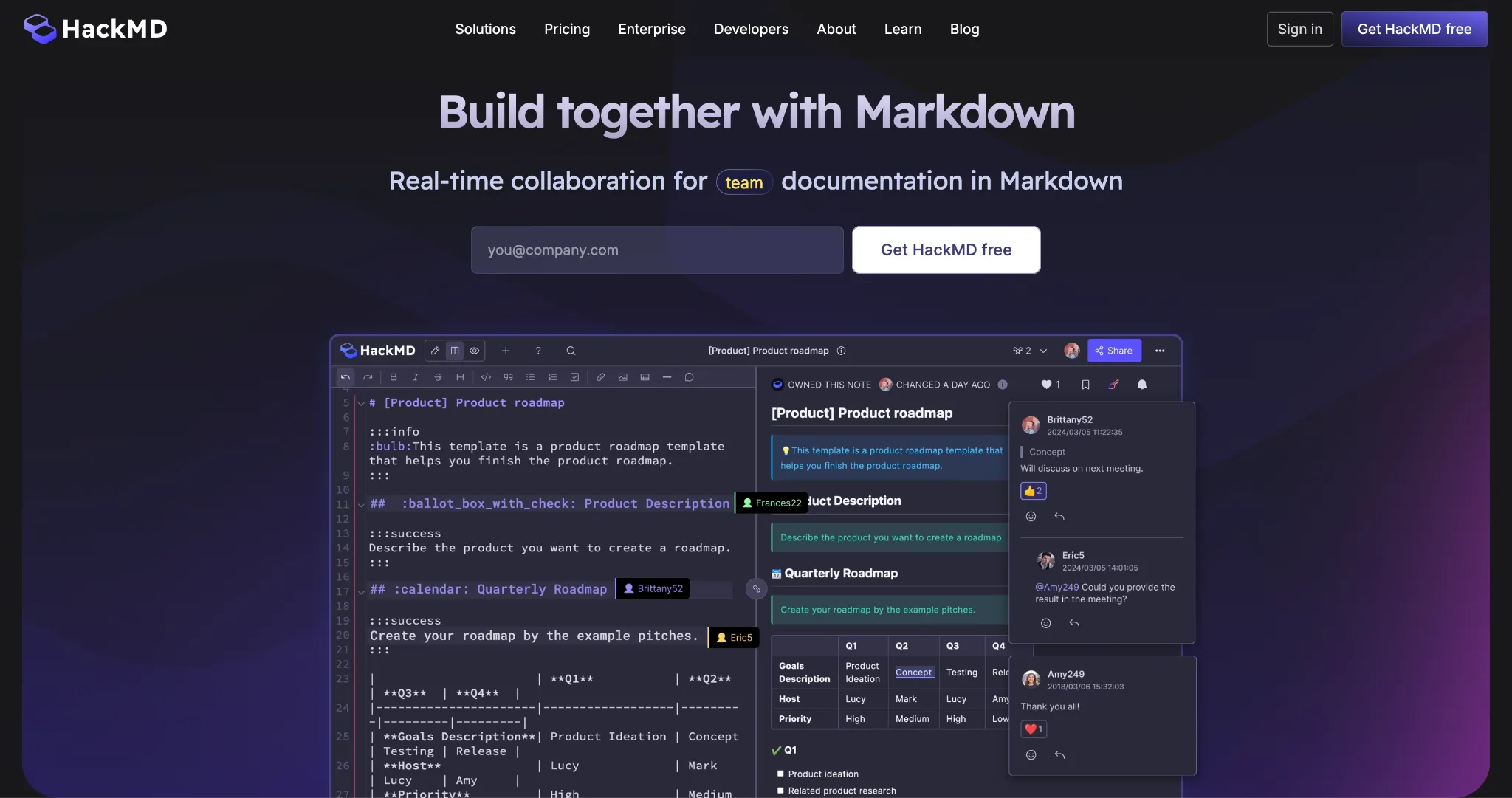
HackMD is a real-time collaborative Markdown editing tool built for developers and technical teams. Often described as "Google Docs for Markdown," it supports simultaneous editing with live preview, GitHub integration for pushing and pulling from repositories, and rich technical content out of the box: syntax-highlighted code, UML diagrams, LaTeX math, and Mermaid charts.
Standout features: Real-time collaborative Markdown editing with live split-pane preview; GitHub and Git integration (push/pull, VS Code extension); full technical content support (code, UML, LaTeX, Mermaid); anonymous joining (no account required); self-hostable via CodiMD.
One honest limitation: The dual-pane Markdown/preview interface can feel dated compared to modern WYSIWYG Markdown editors. Raw Markdown also makes complex elements like tables cumbersome. Not well-suited to non-technical users.
Pricing: Free plan available (up to 3 team members). Prime starts at $5/seat/month. Team+ starts at $16.67/seat/month.
Best for: Developer and technical teams who write, collaborate, and version-control their documentation natively in Markdown.
Knowledge Management Tools
Nuclino
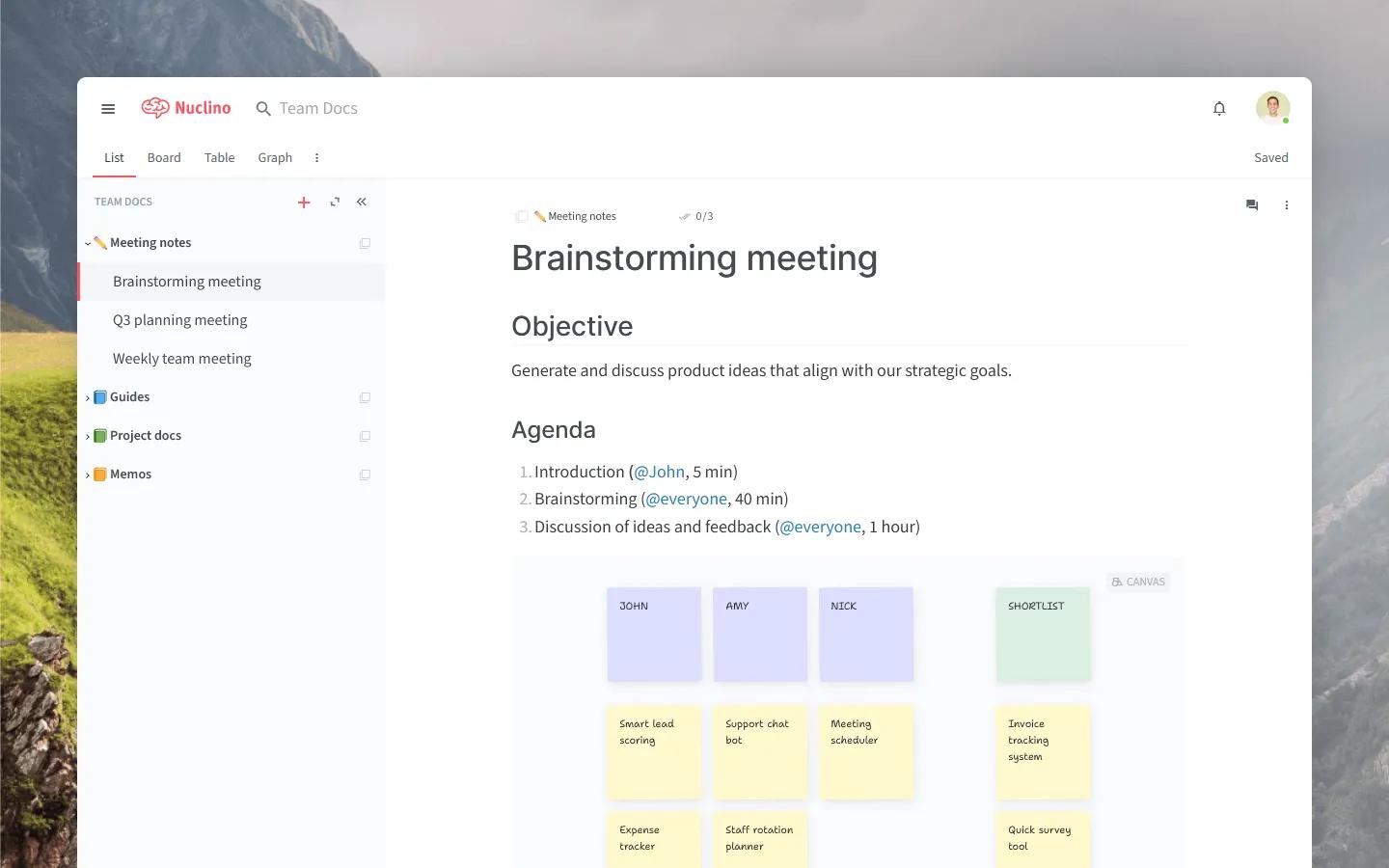
Nuclino is a lightweight, fast knowledge base and wiki designed to be a team's "collective brain." It combines real-time collaborative documents with multiple visualization views (list, board, table, and an interactive mind-map graph) and the Sidekick AI assistant. It's fast, has a minimal learning curve, and supports Markdown natively.
Standout features: Multiple content views, including an interactive graph view; Sidekick AI for workspace Q&A, drafting, and image generation; built-in collaborative canvas and whiteboard; option to publish any workspace as a public website with a custom domain.
One honest limitation: Storage is limited even on paid plans (10–20 GB per user), and advanced document formatting falls short of full word processors. Not the right fit for teams dealing with large media files.
Pricing: Free plan available (50 items, 2 GB). Starter starts at $6/user/month. Business (with Sidekick AI) starts at $10/user/month.
Best for: Small-to-medium teams that want a fast, lightweight wiki with flexible content views.
ClickUp Docs
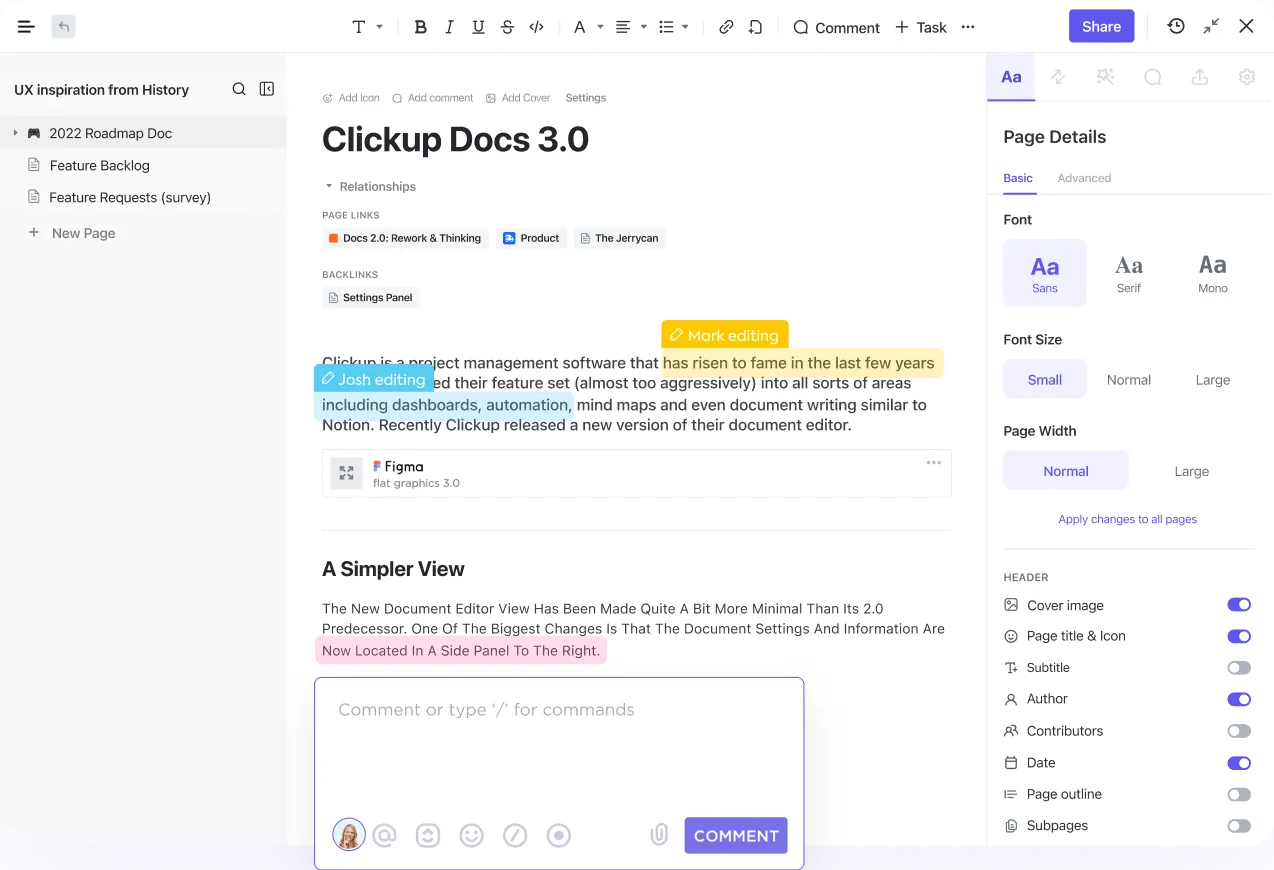
ClickUp Docs is the built-in document editor inside ClickUp, the all-in-one project management platform. Its biggest advantage as a writing tool is how tightly it integrates with tasks: you can convert a line in a doc into a task with one click, embed live task views inline, and reference project data directly in your writing. ClickUp Brain, the AI add-on, covers writing assistance, content generation, workspace Q&A, and meeting transcription.
Standout features: Deep task integration (docs and tasks live in the same workspace); real-time co-editing with rich formatting and nested pages; ClickUp Brain for AI writing, summarization, and project management; 100+ AI writing templates; built-in SyncUps video calls.
One honest limitation: Performance. Independent benchmarks have flagged page load times averaging 8–9 seconds, making it noticeably slower than competitors. The "everything app" scope also creates a real learning curve.
Pricing: Free Forever plan available. Unlimited starts at $7/user/month. ClickUp Brain is a $9/user/month add-on on paid plans.
Best for: Teams already using ClickUp for project management who want docs tightly integrated with tasks.
Confluence
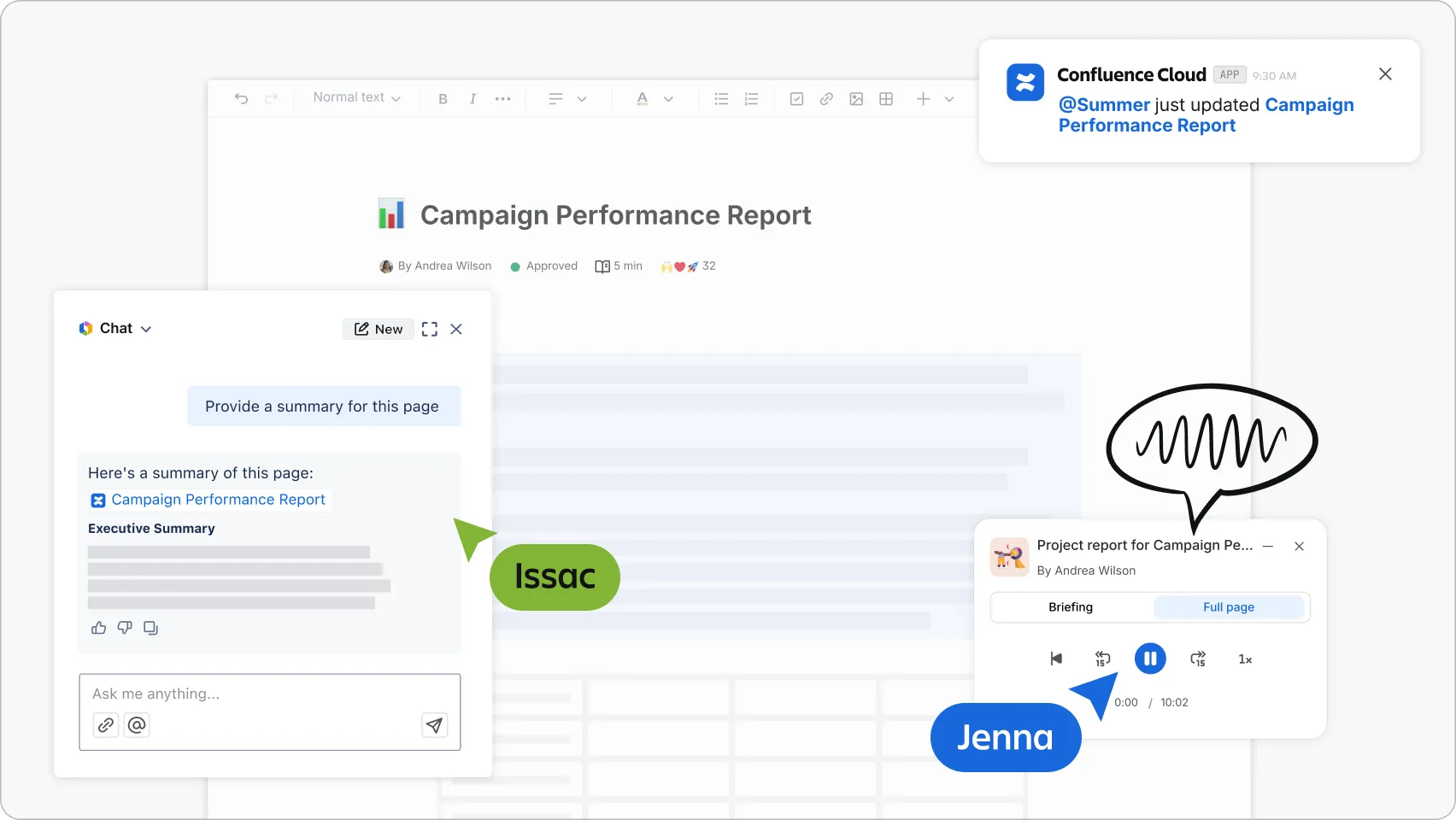
Confluence is Atlassian's team workspace for documentation, wikis, and internal knowledge management. It's the natural choice for teams already invested in the Atlassian stack: Jira issues display live inside Confluence pages via macros, and the two products are deeply interconnected.
Rovo, Atlassian's AI, is included in all paid plans and supports AI-powered search, content drafting, summarization, and autonomous agents across Confluence, Jira, and 100+ third-party connectors.
Standout features: Structured knowledge management with templates, databases, and dynamic intranet features; deep Jira integration (live issue macros, bi-directional links); Rovo AI included in all paid plans; guest access (5 free guests per paid user); enterprise security and data residency options.
One honest limitation: Expensive at scale, and Rovo AI usage is metered by credits (25 credits/user/month on Standard, 70 on Premium). Many useful features are locked to the Premium tier at $10.44/user/month.
Pricing: Free for up to 10 users. Standard starts at $5.42/user/month. Premium starts at $10.44/user/month.
Best for: Software and product teams already on the Atlassian stack who need deep Jira integration.
Writing Tools Somewhere In Between
Notion
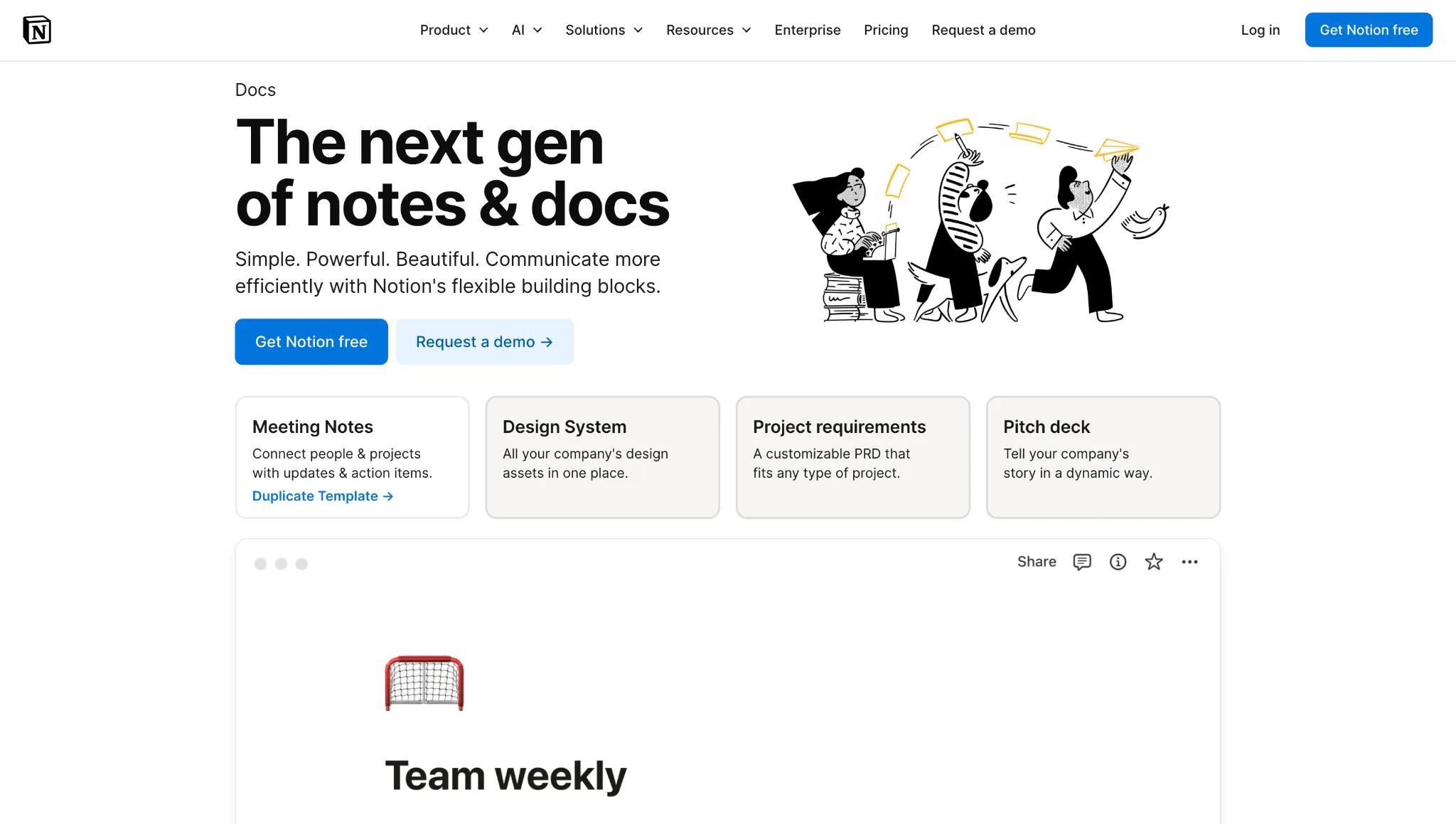
Notion combines documents, wikis, databases, project management, and knowledge management into one flexible, block-based workspace. Everything is a movable, nestable block: text, images, tables, kanban boards, timelines, embeds. Teams use it as a single source of truth for documentation, content calendars, meeting notes, and project tracking.
Standout features: Block-based editor for highly customized page layouts; relational databases with multiple views (table, board, calendar, gallery, timeline); Notion AI for drafting, summarization, and Q&A; thousands of community templates; granular teamspace permissions.
One honest limitation: Full Notion AI requires the Business plan at $20/user/month. Free and Plus plans only get a limited trial. The 5 MB file upload limit on the free plan is very restrictive.
Pricing: Free plan available. Plus starts at $10/user/month. Business (with full AI) starts at $20/user/month.
Best for: Teams that want their docs, wikis, and project management in one place.
Dropbox Paper
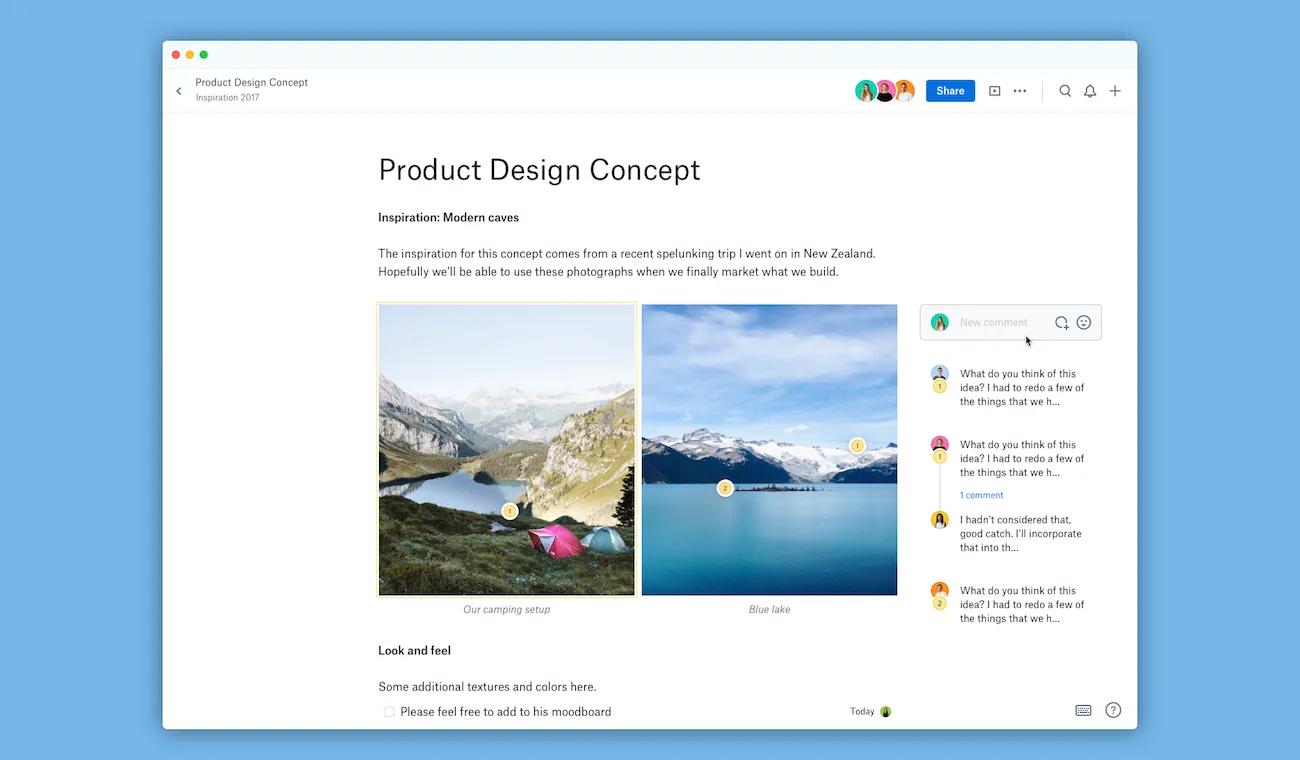
Dropbox Paper is a minimalist collaborative document editor included with any Dropbox account. It offers a clean, distraction-free writing experience with rich media embedding (paste a YouTube or Figma link, and it just works), built-in task management with assignees and due dates, and seamless Dropbox integration.
It’s worth pointing out that Dropbox discontinued the mobile and desktop Paper apps in October 2025. It now exists as a web-only tool with no announced AI features and limited signs of further development.
Standout features: Clean, minimal interface built for distraction-free writing; rich media embedding via URL paste; built-in task management with assignees and due dates; tight Dropbox integration for unified storage and sharing.
One honest limitation: Partially sunset. Mobile and desktop apps were retired in October 2025, and the product shows limited signs of continued investment. Teams looking for a long-term home should consider this option carefully.
Pricing: Free with any Dropbox account. Dropbox Plus starts at $9.99/month.
Best for: Existing Dropbox users who want a simple, no-setup writing layer and aren't planning on a demanding editorial workflow.
Building A Collaborative Writing Workflow That Actually Publishes
Choosing the right writing tool only gets you halfway there. The other half is the workflow that connects drafting, review, approval, and publishing into one process.
Here's what that looks like in practice:
1. Draft
Settle on one writing tool for your team. It’s annoying when one person uses Google Docs, another uses Word, and another uses Notion, and you’re trying to work back and forth between all these different tools.
It’s perfectly fine if someone wants to use something different for their own personal writing. But when it comes to collaboration, you all need to use the same tool.
Pick a writing tool (for most, it will be Google Docs) and stick to it. If you work with freelancers, require them to submit work in Google Docs (or whatever tool you choose). Alongside the document, keep the brief or content specs in the same place so context is never siloed in a separate tab.
✅ Assign clear ownership: one writer, one document. Collaborative writing works best when there's a primary author and defined contributors, not a free-for-all where everyone edits simultaneously without coordination.
2. Review
Use the tool's native suggesting or track-changes mode instead of leaving vague comments like "rewrite this section." Concrete, in-doc suggestions are faster to implement and create a cleaner audit trail.
If you use a project management tool (like Trello) to organize your content flow, you should still leave comments specific to that document in the actual document. Then, you can comment on the project management card as a status update (e.g., “I reviewed the article and left a few comments in there. Please @writers_name take a look and revise the article accordingly.”)
✅ Pro tip: Keep revision rounds to a defined limit. Two rounds is a reasonable ceiling for most content teams: one round for structural feedback, one for line edits. More than that often signals a content brief problem, not an editing problem.
3. Approve
Keep approvals in the document, not in Slack or email. A simple comment from the approver ("Approved, ready to publish [date]") creates a clear paper trail and eliminates the ambiguity of whether a Slack thumbs-up counts as a green light.
✅ Note: For teams with more formal governance requirements, tools like Confluence and Zoho Writer offer built-in multi-stage approval workflows worth enabling.
4. Publish
This is where most content workflows fall apart. A polished, collaboratively written document ends up being copy-pasted into your website CMS (e.g., WordPress, Webflow, etc.) by hand. Images break or need re-uploading. Formatting becomes messy HTML (copy-pasting adds unnecessary tags). A writer or editor burns 20–30 minutes per post on a task that should take minutes or even seconds.
This is the "last mile" problem, and it's where a dedicated publishing tool fixes it.
✅ BlogSync converts Google Docs, Word documents, and Notion pages into clean, SEO-optimized HTML and stages them directly to your website CMS (WordPress, HubSpot, Webflow, Contentful, Sanity, and Ghost) all in one click. Additionally, BlogSync automatically optimizes images, and names images using AI-powered image context (it understands the context of the image and the content around it, to set descriptive image names and alt text).
The collaborative writing tool stays the writing tool, and publishing stops being a manual job.
The workflow then becomes:
- Draft in your collaborative writing tool of choice
- Review using native comments and suggestions
- Approve with a documented sign-off in the doc
- Publish directly to your CMS via BlogSync, without copy-pasting a single line
Frequently Asked Questions
What is the best free collaborative writing tool?
For most teams, Google Docs is the answer. It's completely free for personal use, supports real-time collaboration out of the box, and requires no setup beyond a Google account.
If you need more document automation and a built-in, free AI assistant, Zoho Writer is a good alternative. For creative writing teams specifically, Ellipsus is worth exploring as a focused, privacy-first option.
How do content teams publish docs to their CMS?
Most teams still do it manually, which is a big waste of time on repetitive tasks that could be automated. Copy-pasting from Google Docs or Word into a CMS like WordPress or HubSpot takes 20–30 minutes per post and almost always breaks formatting and requires image re-uploading.
Automated publishing tools like BlogSync solve this by connecting docs directly to your CMS, converting the document to clean HTML, and optimizing images automatically.
What is the best alternative to Google Docs for teams?
It depends on what you're looking for. Notion is the best option if you want an all-in-one workspace combining docs, wikis, and project management. Microsoft 365 works if you need desktop-grade formatting, deep enterprise security, or Teams integration. Nuclino is worth considering if you want something lighter and faster than both, with multiple ways to visualize your content.
Are there collaborative writing tools with built-in AI?
Yes, most of the major tools now include AI. Google Docs has Gemini, Microsoft 365 has Copilot, Notion has Notion AI, ClickUp has Brain, Confluence has Rovo, and Zoho Writer has Zia. The differences are in price and integration quality.
Copilot is a $30/user/month add-on on top of your base Microsoft 365 subscription, while Zoho's Zia is included at no extra cost. Rovo is bundled into all Confluence paid plans. Not every team wants AI in their writing tool, and Ellipsus has built its entire identity around that premise.
What is the best tool for long-form or creative writing?
Ellipsus is the strongest option for collaborative creative writing: its multi-draft system, Focus Mode, and anti-AI philosophy are purpose-built for fiction writers and co-authors. For long-form content marketing (blog posts, reports, whitepapers), Google Docs or Zoho Writer are the most practical choices.
What is the difference between real-time and async collaboration?
Real-time collaboration means multiple people edit a document simultaneously, seeing each other's changes as they happen. It's good for fast iteration and live brainstorming.
Async collaboration means contributors leave comments, suggestions, and annotations that others respond to on their own schedule. It's best for distributed teams working across time zones, or editorial workflows where structured feedback matters more than speed.
Most modern collaborative writing tools support both modes, but the quality of async features (threaded comments, suggestion workflows, version history) varies significantly between them.